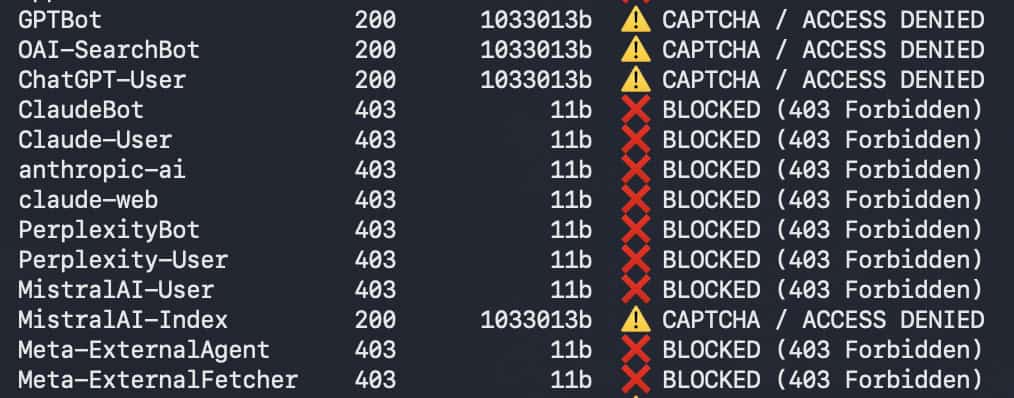
I created a script to answer a fairly simple question that turned out to be harder to check than expected: can the AI crawlers and agents you care about actually access your site?
The idea came from a gap I kept running into when looking at AI crawler accessibility. Before optimizing content for AI, you need to make sure those crawlers can reach it in the first place. But the usual checks don’t always give you the full picture.
One of the most overlooked areas in technical SEO audits is the difference between what robots.txt allows and what may actually be blocked at the server, CDN, or firewall level.
robots.txt tells crawlers about crawl restrictions, but compliance is voluntary. An infrastructure-level block is different: the crawler has no choice because its request is actively denied.
Standard crawling tools usually don’t show this difference. A URL can return a 200 during your crawl while an AI crawler receives a 403, a challenge page, or another response.
For sites using Cloudflare, this is becoming particularly relevant. As of September 15, 2026, Cloudflare will apply new defaults for new domains that block bots classified as Training or Agent on pages displaying ads, while Search remains allowed. It is also changing how mixed-purpose Search + Training crawlers are handled by AI-training blocks, including the legacy “Block AI bots” setting.
The most reliable way to see what crawlers actually receive is to review your server and CDN configuration and check your log files. But SEOs often don’t have access to either. That’s the gap this script is designed to help with: it can flag potential CDN- and server-level blocking that your usual crawl may not reveal.
The testing approach
What the script checks
Initially, I designed the script to focus solely on HTTP status codes, but after a few tests I realized that wasn’t enough.
Even when a 200 status is returned, it can still be a challenge page instead of the actual content. So I included two additional checks to compare response body sizes and look for known challenge patterns.
Another addition was setting a baseline to compare bot responses against. Without a reference point, you’d have to manually compare results. The baseline approach automatically flags any potential issue.
Now, to test bot accessibility, the script first requests the URL using a regular Chrome User-Agent to establish that baseline. It then sends requests using more than 30 bot and crawler User-Agent strings. The script also retests any 429 (rate limited) responses in isolation, to separate real blocks from false positives caused by rapid requests.
This does not perfectly replicate the real bots themselves, but it can reveal whether requests with those User-Agent strings are treated differently. If a bot’s response matches the baseline, there is no sign of interference. If anything differs, the result is flagged for further investigation.
Why test from two locations
My first instinct was to run the script locally, and it worked until it didn’t. I soon realized that testing from a single location is not enough because the same bot can get entirely different responses depending on the IP it’s coming from.
I now run the test from two different locations: a local machine (residential IP) and a cloud environment – Google Cloud Shell (datacenter IP).
The reality is neither of the two is a perfect representation of what a real crawler would see, but the comparison between them serves to flag potential false positives and network-dependent behavior. Some sites block known datacenter IP ranges to prevent scraping, others apply geo-based restrictions, and some treat residential and datacenter traffic differently by default.
Running the same test from both environments gives you two points of comparison instead of relying on a single result. But before looking at how the results can differ between locations, let’s first go through how to get those results.
How to test
The script is open source and available on GitHub: https://github.com/Ljubica-Streamlit/bot-block-checker
Even if you’ve never run a script or used GitHub, Terminal, or Google Cloud Shell before, you can still use this script easily. Just follow the steps below.
1. Run the test from Google Cloud Shell
Go to Google Cloud Shell, and you will be prompted to grant permission. Click Authorize, and you’re in.

Since the script is already on GitHub, the only thing you need to do is paste the command into the terminal (you can see the exact spot in the screenshot below the code):
curl -sO https://raw.githubusercontent.com/Ljubica-Streamlit/bot-block-checker/main/bot-block-checker.sh && chmod +x bot-block-checker.sh
./bot-block-checker.sh https://www.example.com/
Note: Just make sure to replace the example URL with the URL you want to test.

After pasting the commands, press Enter, and you’ll start getting results right away. The whole test is usually completed in under one minute.
2. Run the test from your local machine
Open Terminal on your Mac, add the same bash command as you did on Cloud Shell, and press Enter.

If you’re on Windows, this script won’t work because it’s a Bash script, which PowerShell and Command Prompt don’t support by default. Instead, you can run it through Git for Windows (if you have it installed) or copy my script (from here) and ask Claude (or your preferred AI) to adapt it for your environment.
Once you have both results, let’s see how to read them.
How to read the results
1. When your baseline is not OK

The script outputs a table showing the bot name, HTTP status code, response body size, and a status flag. If your baseline doesn’t return “✅ OK (Baseline),” you won’t get a clean comparison between Chrome and bot responses.
But this doesn’t always mean the results are useless. You can still spot UA-specific blocks by comparing how bots are treated relative to each other.

For example, if Chrome and most bots return 200 with a CAPTCHA page, but certain bots return 403 with a tiny response, those bots are more likely explicitly blocked on top of the general protection. That’s the finding you should investigate.
If all bots return the exact same response as Chrome (same status, same size), there’s nothing more the script can tell you, and you’ll need to check your log files or server/CDN configuration instead.
2. When your baseline is OK

When the baseline returns OK, it means the requested URL is accessible from that environment, and we have a reference response to compare against different user agents.
A “✅ OK (same as Chrome)” status means the bot received the same content as the baseline, meaning there is no evidence that it is being blocked.
We want to focus on responses that differ from the baseline. For example, a 403 block, challenge page, rate limiting (429), or a significant difference in response size is worth investigating further.
Some bots will be blocked, and this is normal and expected. For example, some sites might block Bytespider, which is not an SEO/AEO issue. A block is a concern if it affects a bot you actually want to be able to access the site.
3. Comparing local and Cloud results
Once you have results from both environments, compare them side by side.
If a request using the same bot User-Agent is blocked from both locations while the baseline remains accessible, the request may be triggering a bot-specific rule. This is the first thing I’d investigate.
If it is blocked in only one environment, the cause is more likely tied to that environment (such as datacenter IP filtering, geo-restrictions, or another network-level rule). It is still worth noting, but it is not conclusive on its own.
If the request receives the same successful response in both environments, there is no obvious sign from these tests that the User-Agent is being treated differently.
What to do when you find blocking
When the script flags a bot as potentially restricted, the first question is whether that restriction matters for your SEO/AEO goals.
For example, if the site owner has intentionally restricted training crawlers, no action is needed. But if the restriction affects a Search or Agent bot that should be able to discover, retrieve, or cite your content, you should move forward with your investigation and fixes.
In that case, the next step is to confirm where the restriction is coming from and whether it can be safely removed.
Even if you have access to the CDN or server, bot-blocking settings can live in different places depending on the hosting provider, CDN, firewall, or bot-management setup.
You can read the provider’s documentation to find where bot access is configured and check the relevant settings yourself, or contact their support team.
If you do not have access to the CDN or server, document your findings and send the evidence over to the development or infrastructure team with a clear recommendation as to which bots should be allowed.
The most important part is to treat the script results as a signal, not as definitive proof. The test suggests a specific bot User-Agent could be blocked or treated differently, but the finding should be confirmed through CDN/server configuration or log files.
Final thoughts
AI visibility starts with access. Before worrying about how well your content is optimized for AI search, it’s worth checking whether the crawlers and agents that matter to you can reach it in the first place.
This script won’t replace server logs or CDN configuration checks, and it can’t perfectly reproduce a request from the actual crawler. What it can do is give SEOs a practical way to spot differences that standard crawling tools may not reveal, especially when the same test is run from more than one environment.
I’ll continue updating the script as new edge cases emerge. If you find an interesting result or a case the script doesn’t handle well, feel free to open an issue on GitHub or reach out to me on LinkedIn.
Thanks for reading!

View more case studies

The Atomic Answer Framework, Localised: Winning AI Overviews Across Markets

How to build an SEO audit that runs itself (and knows when not to send the report)

How to Build an AI Content Pipeline That Can’t Fabricate Its Sources